
For: Headteacher, Principal, Vice principal, Assistant headteacher
Headteacher and deputies
Following the school day, approving lesson plans and report cards, spotting pupils who are slipping and writing to the school — for the headteacher, principal and their deputies.
Your home screen
Your Dashboard opens with what is waiting for you: lesson plans to approve and classes whose register has not been taken today. Press Review or Open beside one to go straight there.
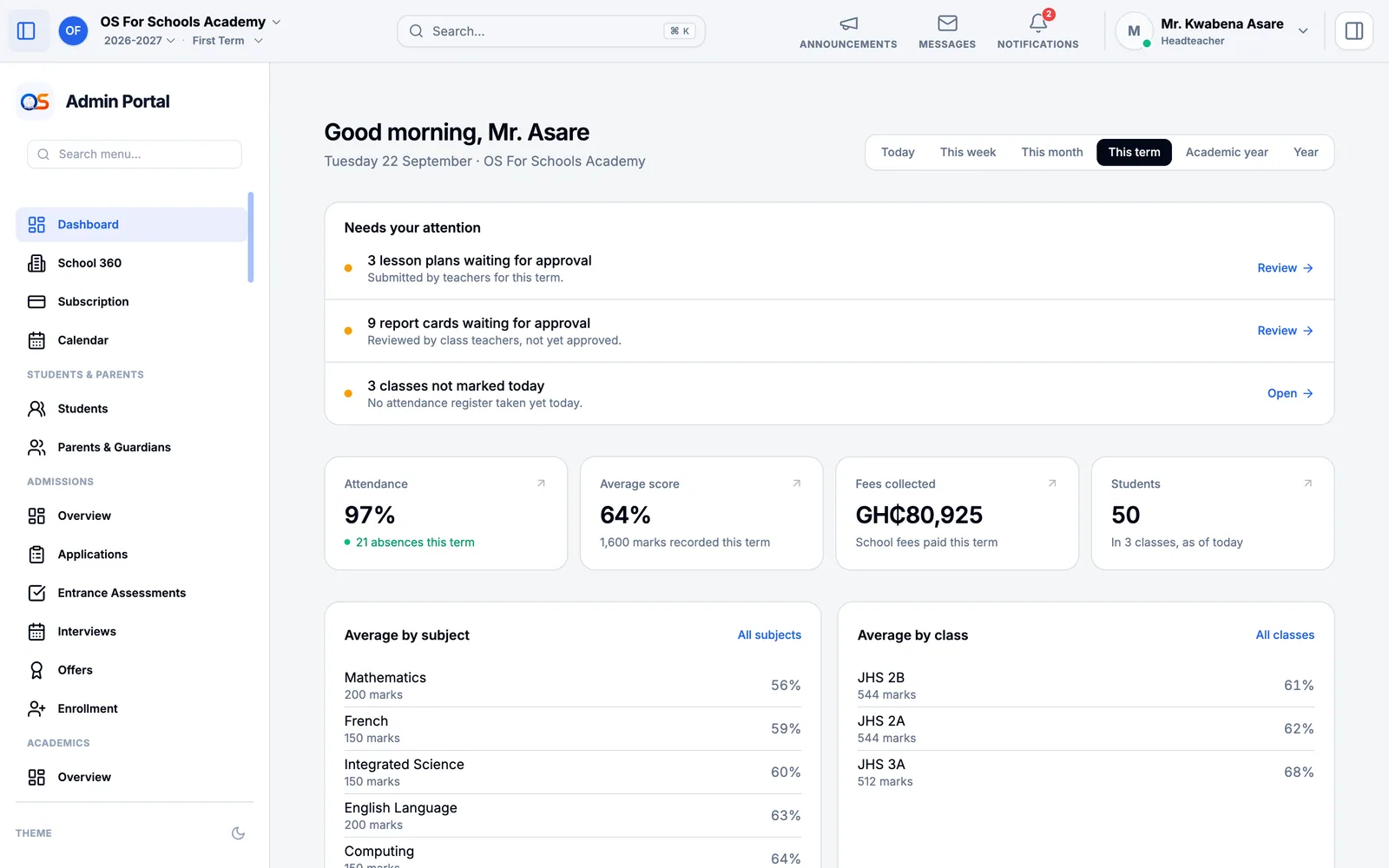
Below are the term’s attendance, average score and pupils, and the average for each subject and each class — the quickest way to see where the school is strong and where it needs you. Fees and money are the owner’s, the administrators’ and the finance office’s. Change the period with Today, This week, This term and the rest at the top.
Registers
Every class teacher takes the register each morning. Attendance (under Academics) shows each class, who is present, absent or late, and which registers are still to be taken. When a class is not marked by mid-morning, a word with its teacher usually settles it.
Approve lesson plans
Press Review beside "lesson plans waiting for approval" on your Dashboard. You see every plan teachers have submitted.
Open a plan and read it: the topic, what pupils should learn, and how it will be taught.
Approve it, or reject it with a comment saying what to change. The teacher sees your comment, corrects the plan and submits it again.
Report cards
Each pupil’s report card makes itself from their marks and the register. On the last day of term it goes to their parents by itself, once its marks are all in — with the class position worked out, the marks locked and the parents told. Nothing needs generating, approving or publishing.
Open Report Cards (under Academics) and choose a class. Going to parents says when the cards go out, how many are ready, and which pupils are still waiting for a mark.
Choose a pupil to read their card exactly as it will print. Type your remark in Head teacher’s remark if you wish and press Save remarks — it goes out on the card.
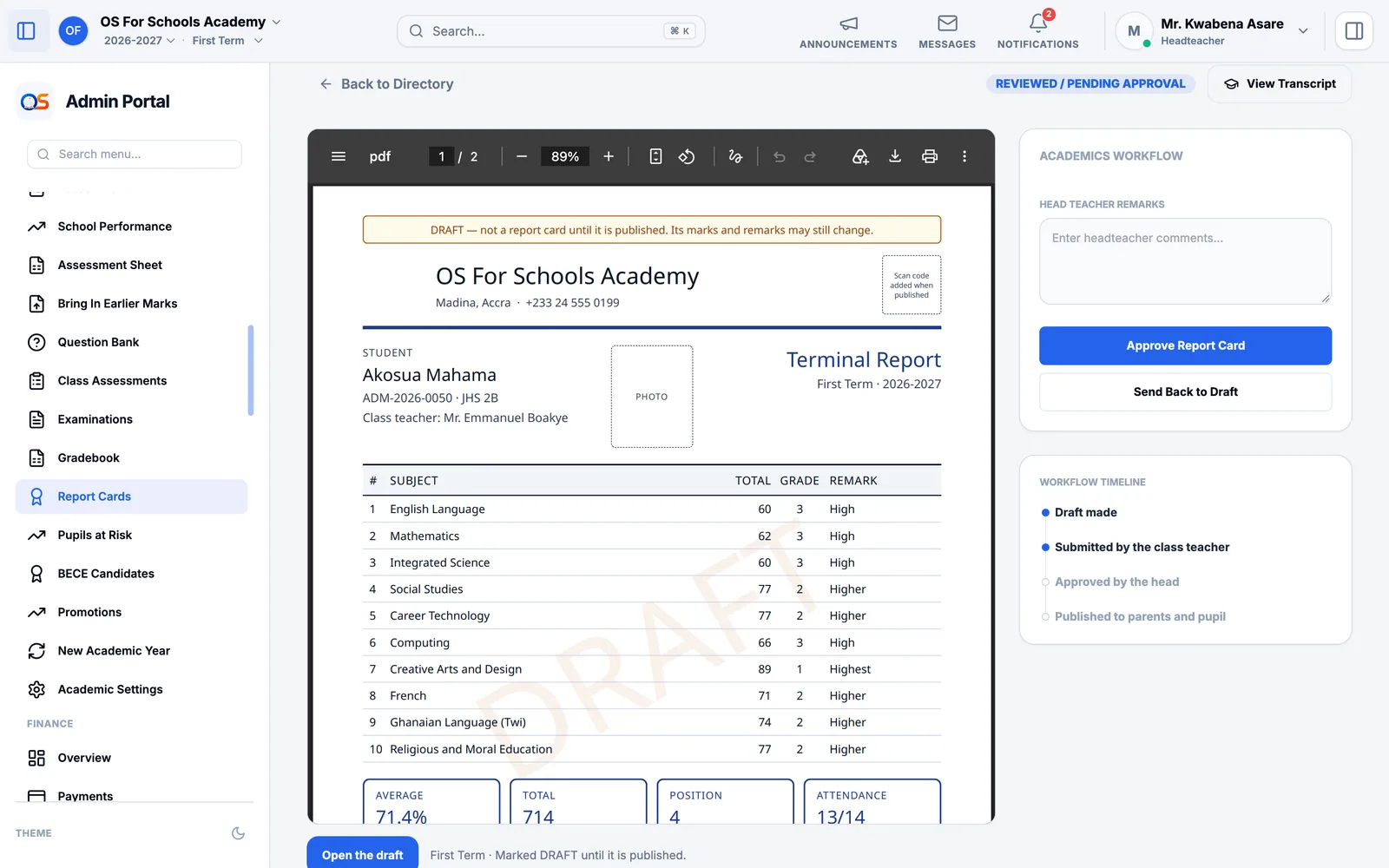
To send a class’s ready cards before the last day, press Release now. Parents and the pupil can then open them, and the printed copy carries a QR code anyone can scan to check it is genuine. A school that wants to check every card first can choose When a head releases them in Academic Settings.
Pupils at risk
Pupils at Risk (under Academics) lists pupils whose attendance or marks are slipping, and says why: days missed in the last four weeks, recent marks below the pass mark, or a drop against their own earlier weeks. Both together is marked High — call home.
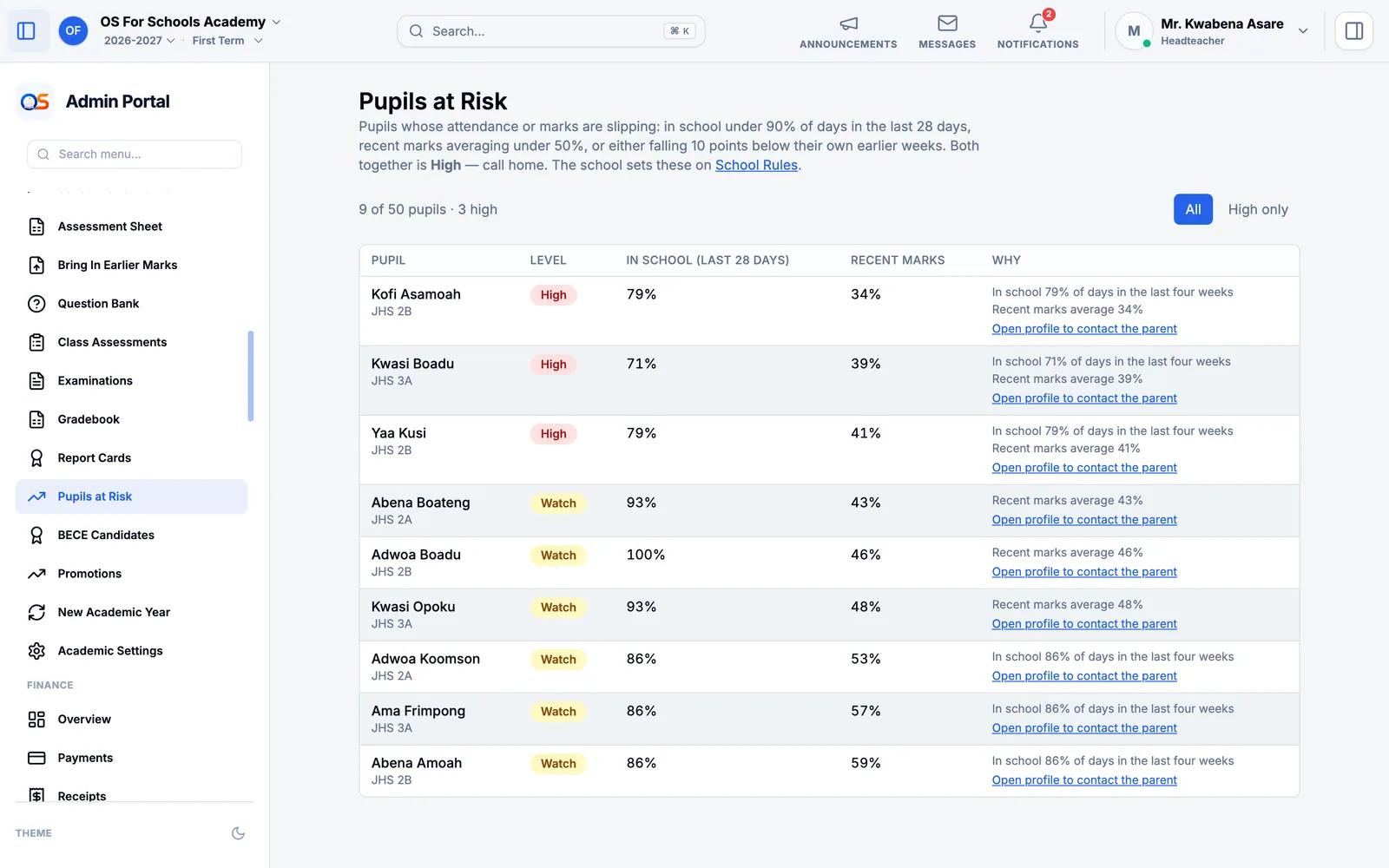
Press Open profile to contact the parent to see who the pupil’s parents are and how to reach them. The limits used here — 90% of days, a 50% average, a 10-point drop — are the school’s own, set in School Rules.
Write to the school
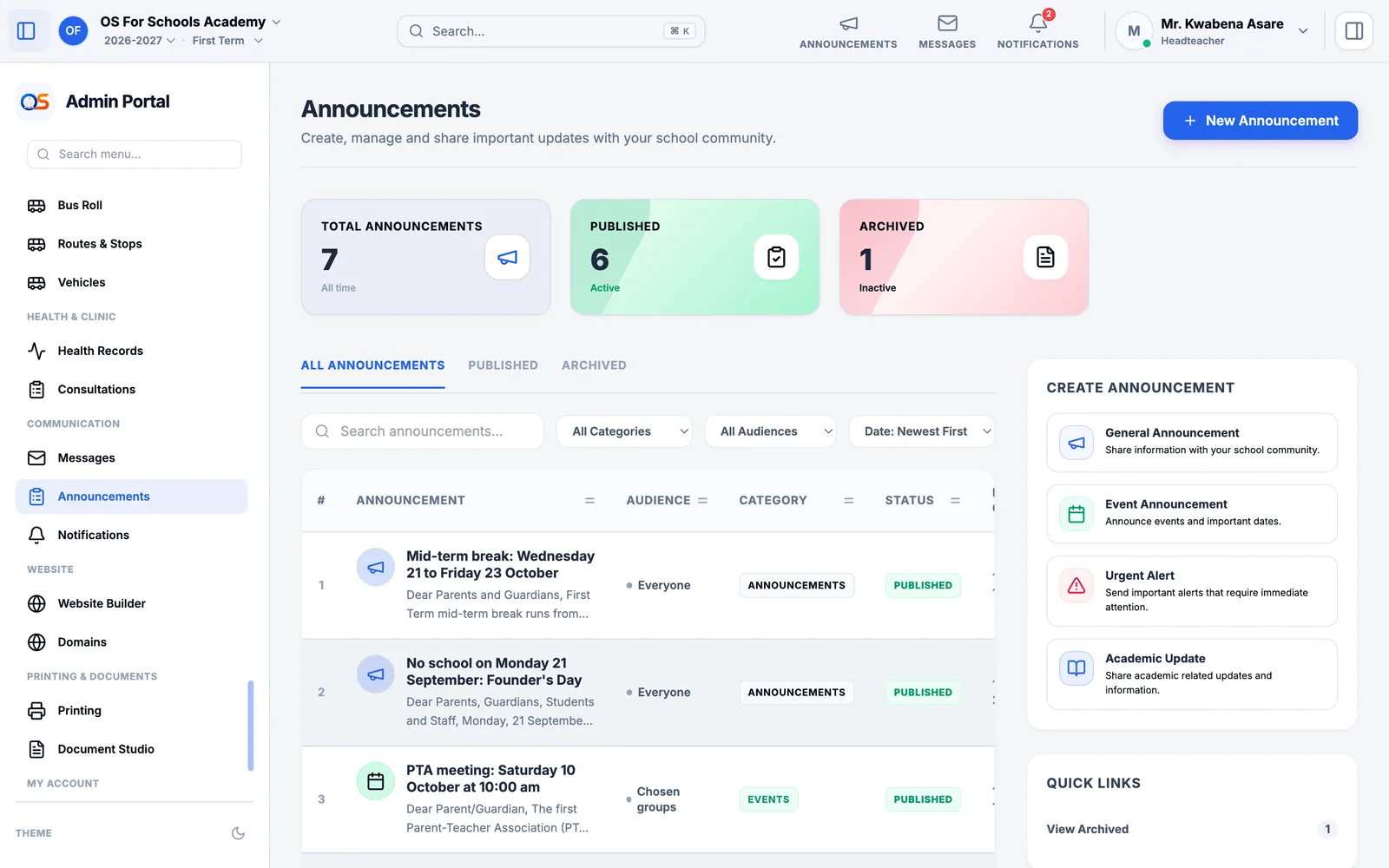
Open Announcements (under Communication) and press New Announcement.
Write a clear title and the message. Choose who it is for: everyone, chosen groups such as parents or teachers, chosen classes, or chosen people.
Tick that readers must acknowledge it if you need to know each person has read it — a change of date, or documents parents must bring.
Publish it. It appears at once on everyone’s home screen and under the bell.
BECE candidates
For a JHS, BECE Candidates (under Academics) lists every JHS 3 pupil with what WAEC registration needs — full name, date of birth, gender and photo — and flags anything missing. It also totals each pupil’s School-Based Assessment marks from JHS 1 to JHS 3, weighted the way the school’s rules say, ready to print or download.
The end of the year
- Promotions (under Academics): choose a class and decide for each pupil — promoted, promoted on probation or repeating — using their results for the year.
- New Academic Year: when the year is over, move the school into the next one. Each pupil moves to their class for the new year, following the promotion decisions, and last year stays exactly as it was, to look back on.
For principals and deputies
The principal, vice principal and assistant headteacher use the same pages. What each can approve follows the school’s own arrangement — if a button you need is missing, the school owner or IT administrator can check your account’s job in User Accounts.